Ctrl-Mouse Wheel to zoom in and out of the map
What's New (Re-Access via "New Features")
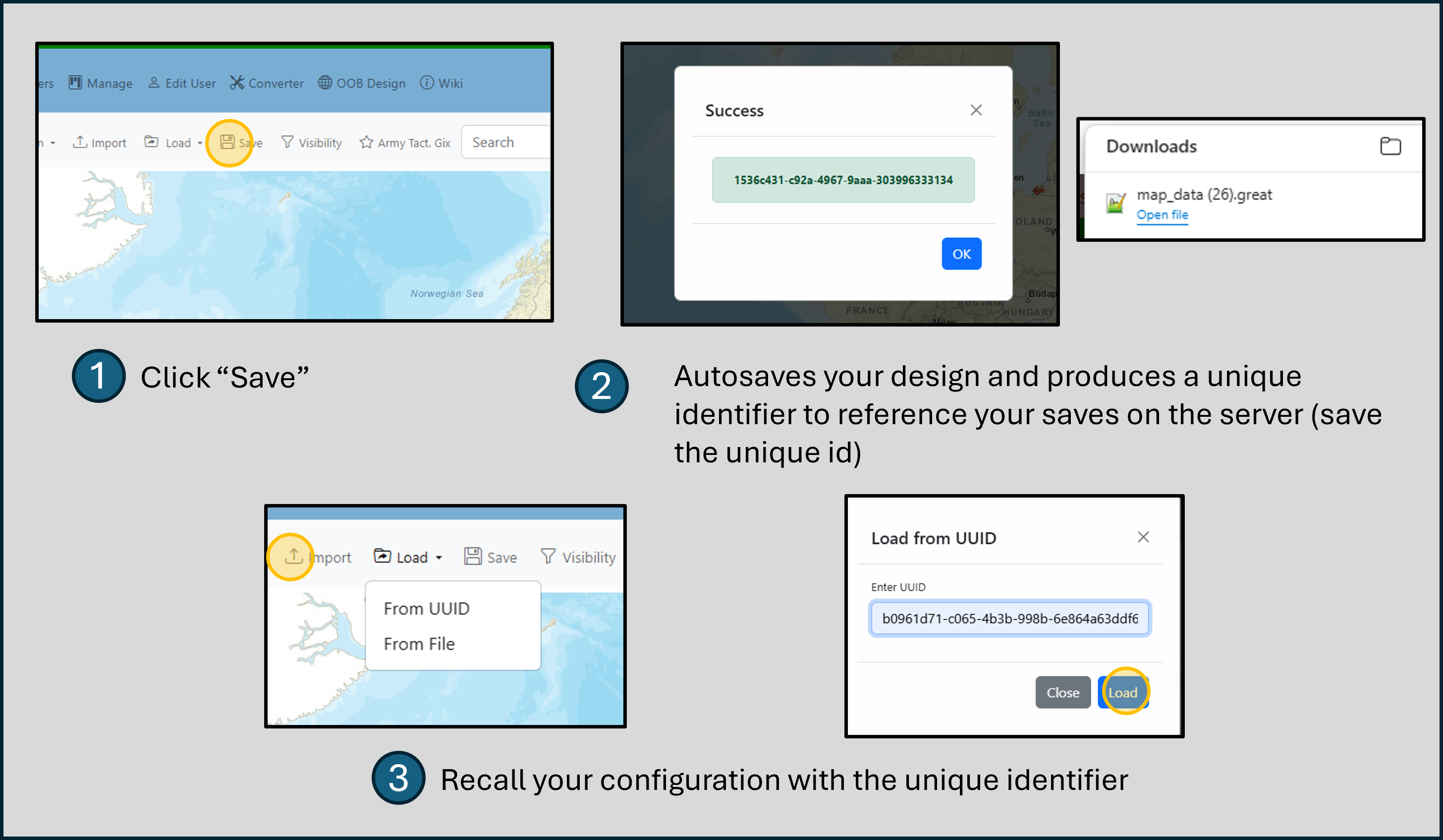
Now Save and Load with a Unique ID
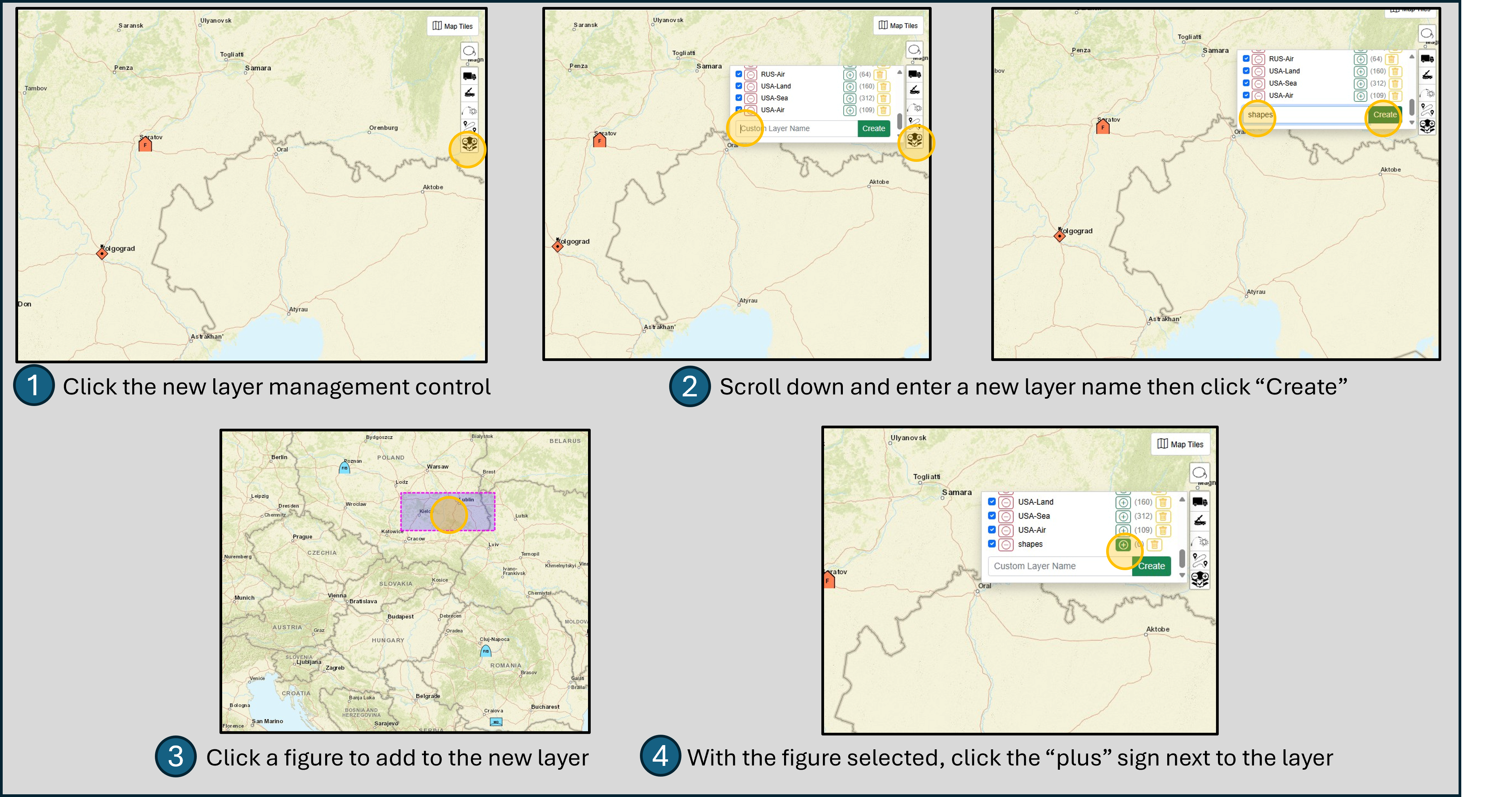
Create a Custom Layer
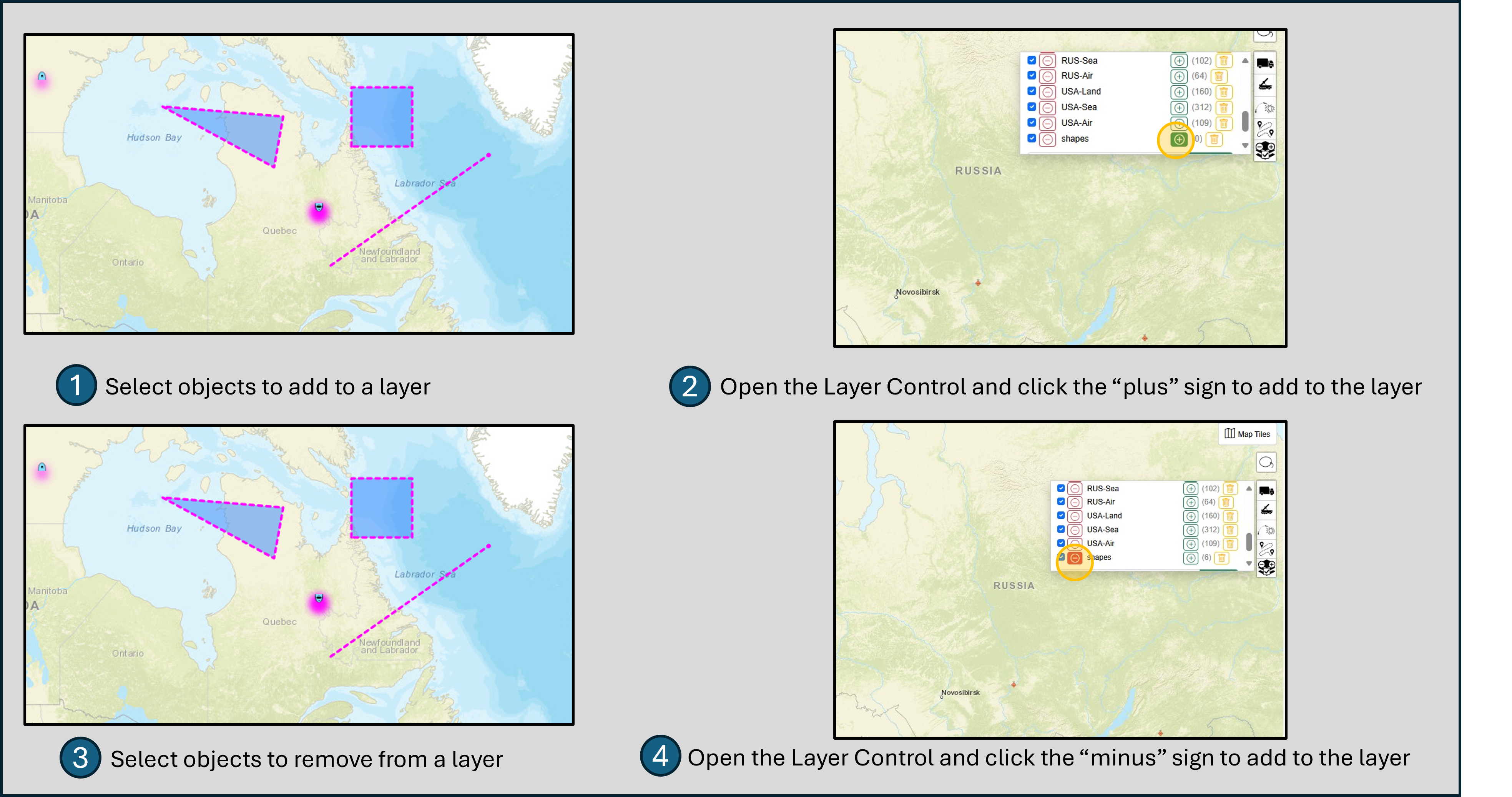
Add or Remove Items from a Layer
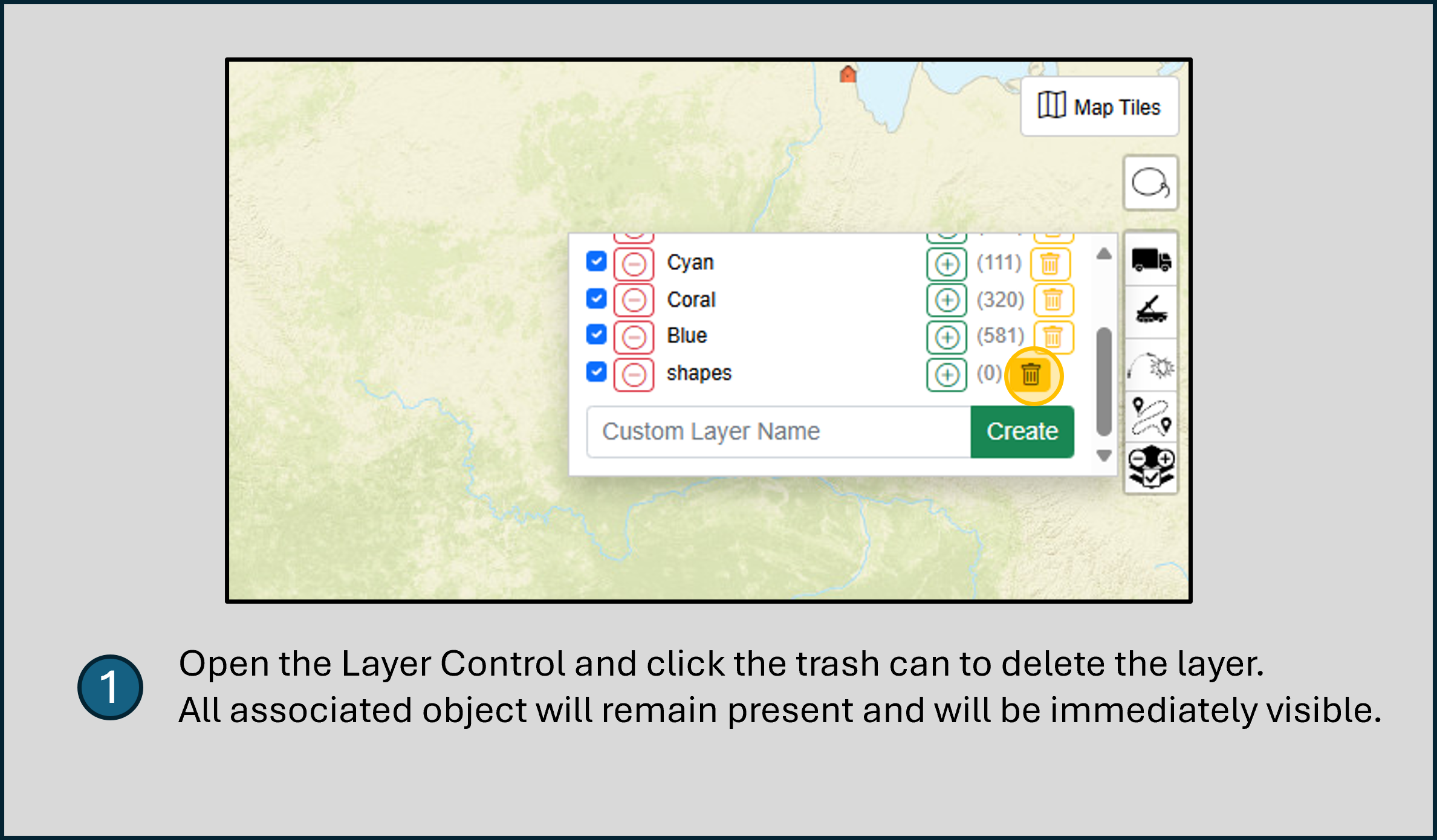
Delete a Layer
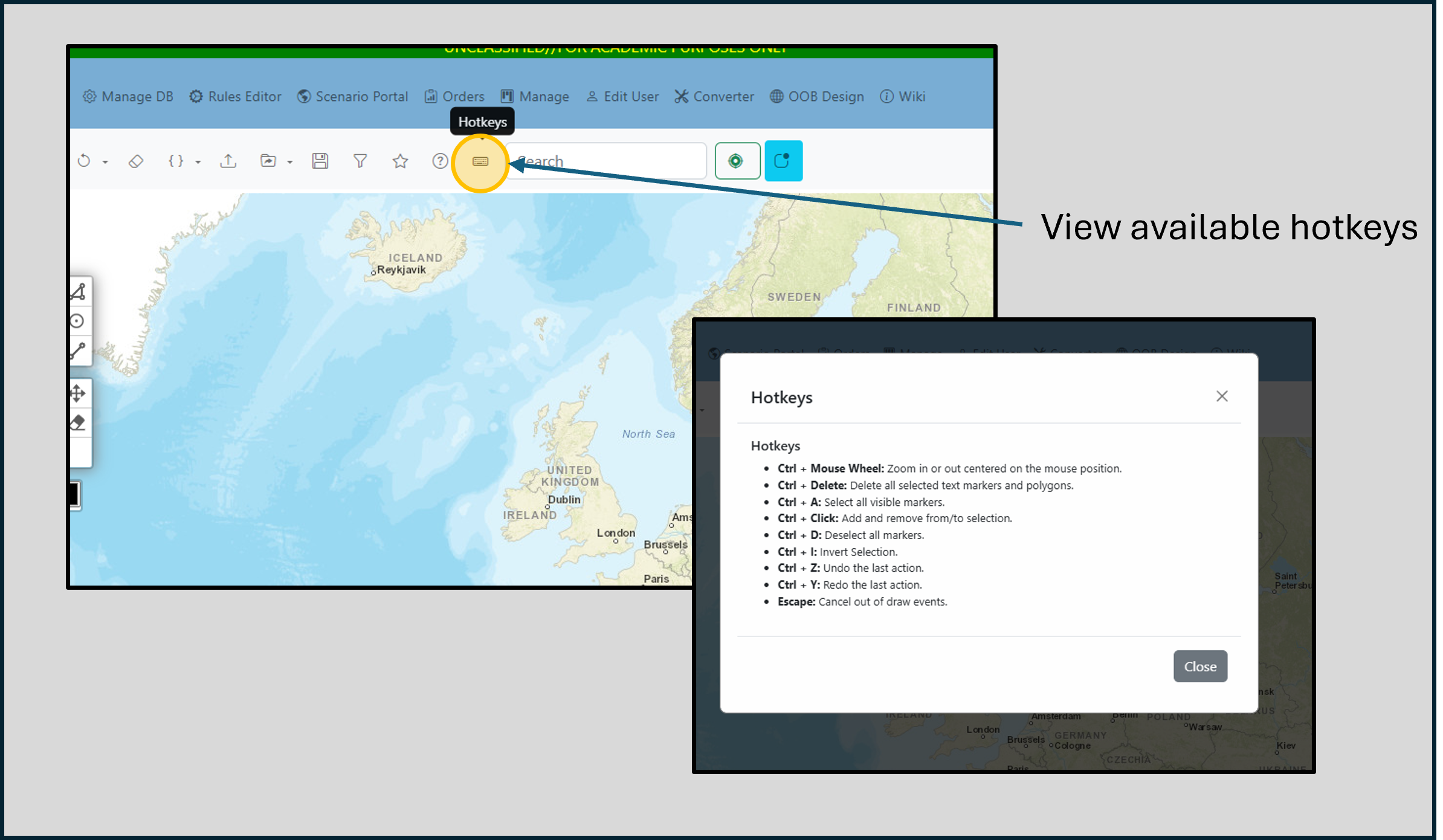
View the Hotkeys
Load from UUID
Configure Behavior
Popup Behavior
Mouse Wheel Zoom
Map Drag
Marker Size
1Marker Selection Color
Map Features Help
Interacting with the Map
- Import Feature: Use the "Import" button to load an order of battle into the map.
- Dragging Icons: Click and drag any marker to reposition it on the map.
- Selecting Icons: Click a marker to select it. Use Ctrl + Click to select multiple markers or use the lasso tool for bulk selection.
- Bulk Move: After selecting multiple markers, drag any selected marker to move all selected markers simultaneously.
- Drawing Features: Utilize the drawing and editing controls on the top left to add or modify geometric shapes on the map.
- Popup Details: Double-click on any marker to view detailed information in a popup.
- Search Feature: Use the search bar to find markers. Press Enter to cycle through search results.
- Deselecting Icons: To deselect all currently selected markers, click the "Deselect" button.
- Resetting Markers: To reset all markers to their original positions, use the "Reset" button.
- Color Picker: To change the color of a shape on the map, select a color from the color picker, then click on the shape to apply the color.
- Changing the Base Tiles: Use the tile layer switcher on the top right to change the map's background.
- Team Affiliation Colors: Ensure the team column contains either blue or red values to display affiliations.
- Layer Management: Use the layer management panel to toggle the visibility of different map layers, reorder layers, and adjust their opacity.
- Adding to Layers: To add a new layer, use the "Add Layer" button and specify the layer details.
- Removing from Layers: To remove items from a layer, select the items and use the "Remove from Layer" option.
- Removing Layers: To remove an entire layer, select the layer and use the "Remove Layer" button.
Get the icon codes from Spatial Illusions here
Hotkeys
Hotkeys
- Ctrl + Mouse Wheel: Zoom in or out centered on the mouse position (If enabled in Options).
- Ctrl + Delete: Delete all selected text markers and polygons.
- Ctrl + a: Select all visible markers.
- Ctrl + Click: Add and remove from/to selection.
- Ctrl + d: Deselect all markers.
- Ctrl + i: Invert Selection.
- Ctrl + z: Undo the last action.
- Ctrl + y: Redo the last action.
- Escape: Cancel out of draw events.
Add New Unit
Quick Select Presets
Click to populate form with realistic military unit examples from OOB data
Edit Unit
Preview will appear here
Generation Method
Custom Icon Mode: You can paste a SIDC code here or use the icon generator to create one.
Loading...
Loading...
Confirm Overwrite
Are you sure you want to overwrite the saved file?
Current UUID:
Success
Failure
Hint: Indecipherable errors tend to indicate network issues
Delete Layer
Are you sure you want to delete this layer: ""?